Documentation Menu
Organization
Linkflare provides powerful tools to keep your library organized: Collections for structure, Tags for context, and Saved Searches for automation.
Collections
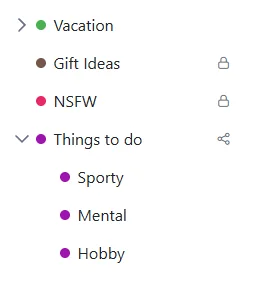
Collections are like folders. They are the primary way to group your bookmarks. You can also created nested collections or subfolders, e.g. one collection called "Europe" and under that you have "Italy", "Germany" etc.
- Create: Click "Add Collection" in the sidebar.
- Color & Icon: Assign a color and icon to make it stand out.
- Drag & Drop: Drag collections to organize them hierarchically.
Note: A bookmark can only belong to one collection at a time.
Tags
Tags are labels you attach to bookmarks. Unlike collections, a bookmark can have unlimited tags.

Hierarchical Tags
Linkflare supports nested tags, allowing you to build a taxonomy.
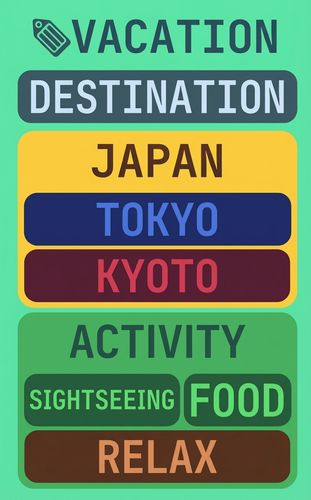
For example, you can have a tag #vacation with sub-tags #scotland, #italy, #greece.
- Search Power: Searching for
#vacationwill automatically find bookmarks tagged with#scotlandor#italy. - Multiple Parents: A tag can have multiple parents.
#scotlandcan be under#vacationAND#europe.
This allows for incredibly flexible organization. You can find all your vacation ideas, or all your Europe links, and the Scotland trip will appear in both.
Visual Cues
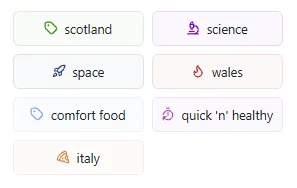
You can assign colors and icons to tags, making them instantly recognizable in your list.
Saved Searches
Saved Searches are dynamic, self-updating folders. Instead of manually dragging bookmarks into a folder, you define a set of criteria once, and Linkflare keeps the search populated for you — forever. Think of them as live views into your library rather than static containers.
How they differ from Collections
- Collections are manual and exclusive — you place a bookmark in one, and it stays there until you move it.
- Saved Searches are automatic and overlapping — a single bookmark can show up in any number of Saved Searches whose criteria it matches, without ever being "moved".
Creating a Saved Search
- Use the filters in the bookmark view to narrow down your library — by type, tag, rating, collection, date, or any combination.
- Refine the results until the list shows exactly what you want.
- Click "Save Search" and give it a memorable name. It now appears in your sidebar alongside your collections.
What you can filter on
Saved Searches can combine multiple conditions, so they get specific:
- Type — Articles, Videos, Movies, Books, Products, Recipes, Places, and more.
- Tags — including hierarchical tags, so
#vacationpulls in#scotlandand#italytoo. - Rating — Thumbs Up / Thumbs Down.
- Collection — scope a search to a single collection or across your whole library.
- Keywords & metadata — match on the title, notes, or extracted metadata.
Example: a "Sci-Fi Watchlist"
Create a search for Type: Movie AND Rating: Thumbs Up AND Tag: Sci-Fi.
From now on, every time you save a new sci-fi movie and rate it up, it appears in this Saved Search automatically — no filing required. Remove the rating and it quietly drops out again. The search always reflects the current state of your library.
Sharing Saved Searches
Just like Collections, Saved Searches can be shared with a public link or with collaborators. Because the search is dynamic, anyone you share it with always sees the latest matching bookmarks — a great way to publish a curated, always-fresh reading list or watchlist that maintains itself.
Tip: Saved Searches are perfect for recurring workflows — an "Unread Articles" search (Type: Article, no Thumbs rating), a "To Buy" search (Type: Product, Tag: wishlist), or a "Weekend Recipes" search all keep themselves up to date.