Documentation Menu
AI Article Summaries
Linkflare Pro automatically distills every article you save into 3–4 bullet points, so you can decide what's worth reading — and remember what you read — at a glance.
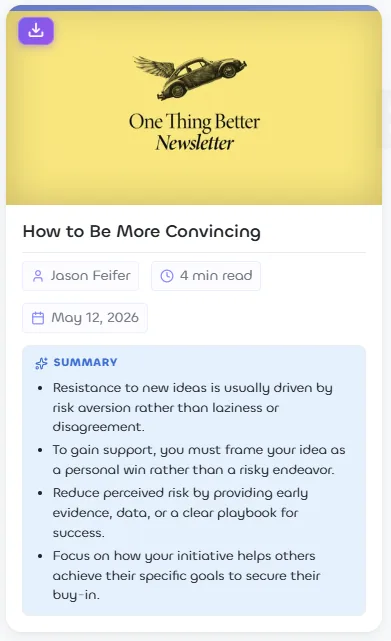
What it does
When you save a bookmark that Linkflare identifies as an Article, Pro generates a short summary — the key takeaways as a handful of concise bullet points, written in the article's own language. The summary is stored with the bookmark, so it's generated once and then available instantly everywhere.
Note: Summaries are only created for bookmarks of type Article.
Where you'll see it
- In the article reader. Open any article (the "Read" button) and the summary appears in a box at the top, above the full text.
- From the bookmark's menu. Click the three-dots (⋯) menu on an article card and choose See summary to read the bullets in a popup without opening the full article.
- On the cards themselves (optional). Open View Settings and turn on Article Summary to show the bullet points inline on every article card while you browse. This is off by default.
When summaries are generated
Summaries are created automatically in the background the moment you save a new article — there's nothing to switch on. Generation never slows down saving, and it doesn't run during large imports, so bringing in thousands of bookmarks won't trigger a flood of processing. For older articles saved before you had Pro (or if a summary ever fails to generate), opening the reader or choosing See summary creates it on demand.
Free vs Pro
AI Article Summaries are a Linkflare Pro feature. Free accounts can still use distraction-free Reader Mode; upgrading to Pro adds the automatic summaries on top.